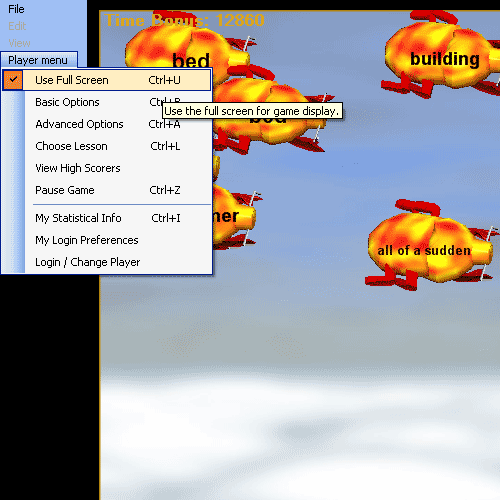
The first item in the Player Menu allows you to change how the Hungry Frog game is displayed on your monitor or monitors.
Player Menu | Use Full Screen:
Playing the game on one monitor: The first item in the Player Menu is the 'Use Full Screen' option. When the check box is displayed, the game program automatically fills the entire screen (the primary monitor on which the game window is displayed). It is similar to the 'maximize' button in a normal Windows operating system window (or the Hungry Frog game window when 'Use Full Screen' is not selected) except no window border is displayed and no grab bars at the top or bottom of the windows are displayed. If you have your Windows taskbar at the bottom of the display set to 'autohide', then all you will see on your monitor is the Hungry Frog game world. If you turn off 'Use Full Screen' then the Hungry Frog game (in the examples Hungry Frog Spanish game) runs inside a normal Windows application window. You can minimize it, maximize it, resize it and move it just like any normal Windows application window.
Playing the game on two monitors simultaneously: If you have to displays connected to your computer, and you select 'Use Full Screen' mode to play then whichever monitor was displaying the game window or had the game startup icon will be the screen used. However, if you run the game in windowed mode (with 'Use Full Screen' turned off) you can resize the window to cover more than one monitor at a time and play the game across both of your active displays. The game may slow down a bit if both displays are very large.
A screen capture from a large sized display window:
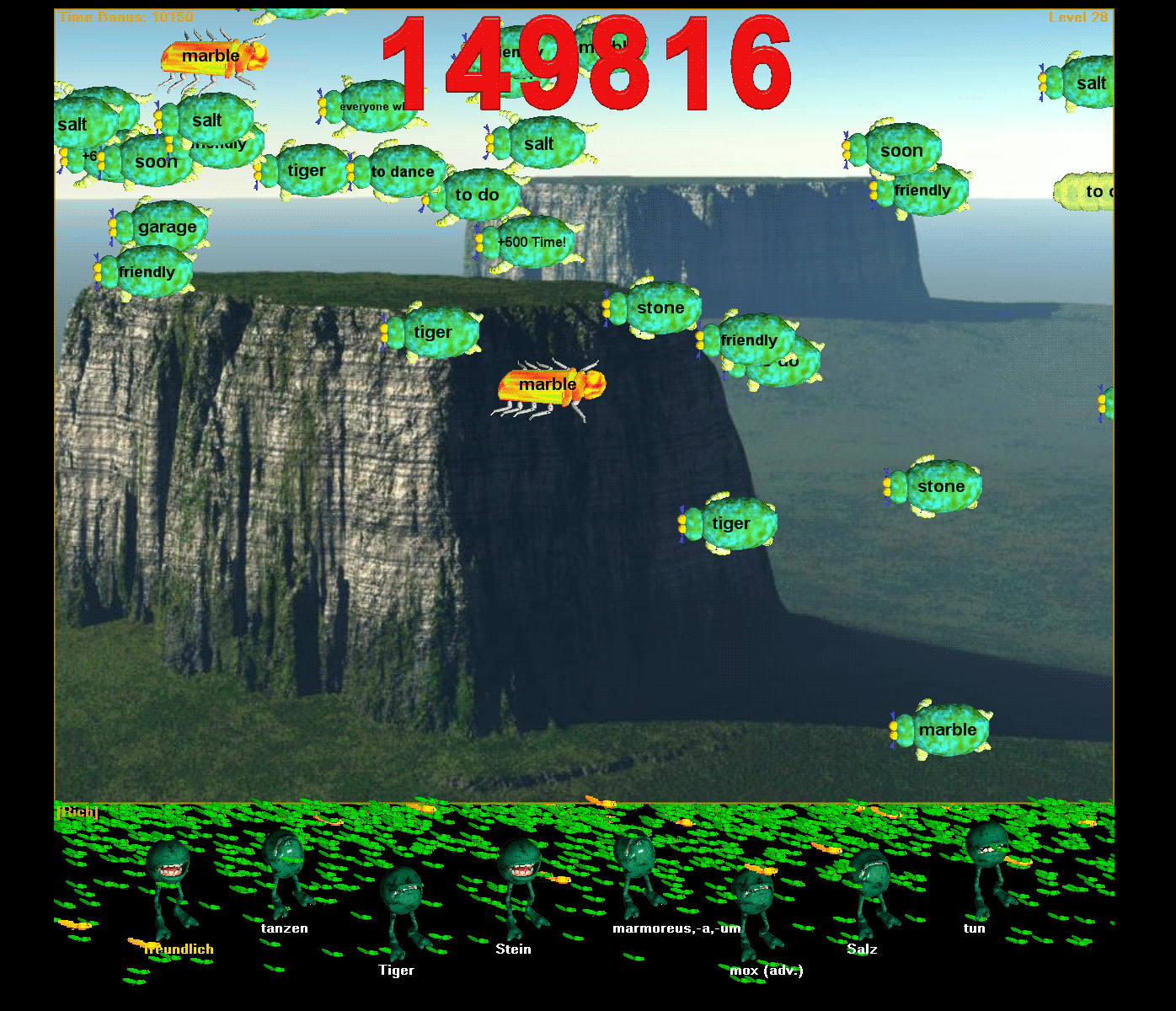
With 'Use Full Screen' turned on the game window automatically sizes to the size of your monitor screen and adjusts the Game World images accordingly. Here are some screen captures from a 1024x768 sized display.
Hungryfrog Education Software
|
Hungryfrog User Community Participate in the Hungry Frog Education Software User Community to share your lessons and ideas with others and to report program bugs and suggest improvements to the PC computer software and the free Java applets at the web site. |
A small sized game world image inside the window display area:
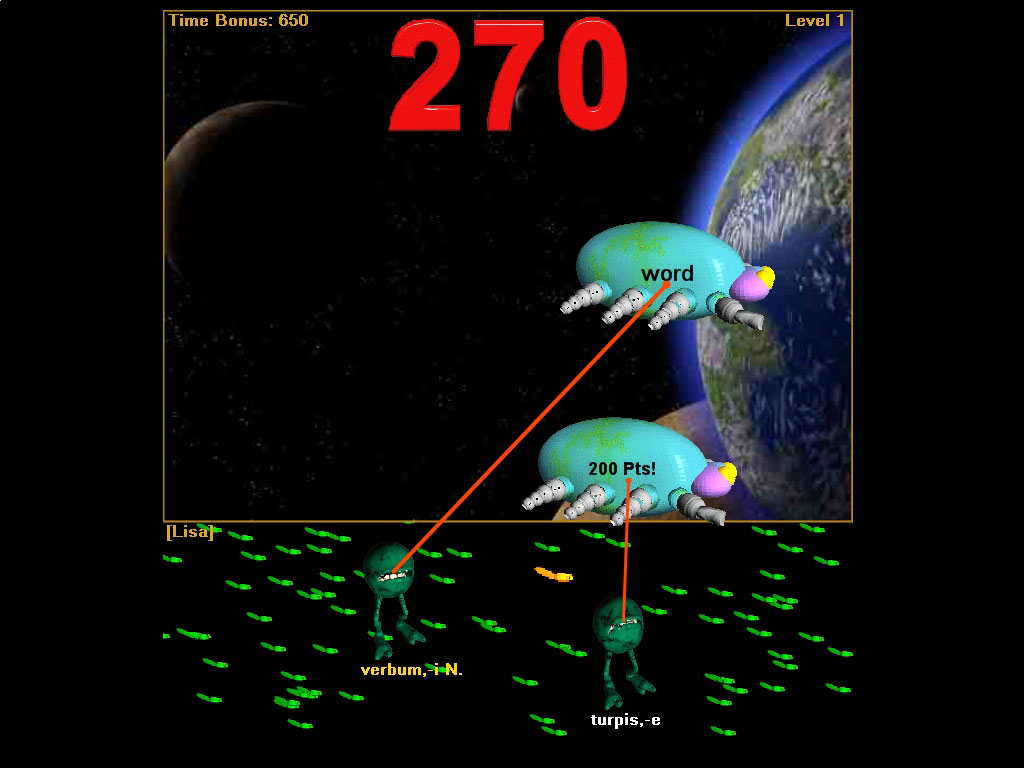
A medium sized game world image inside the same 1024x768 sized display area:
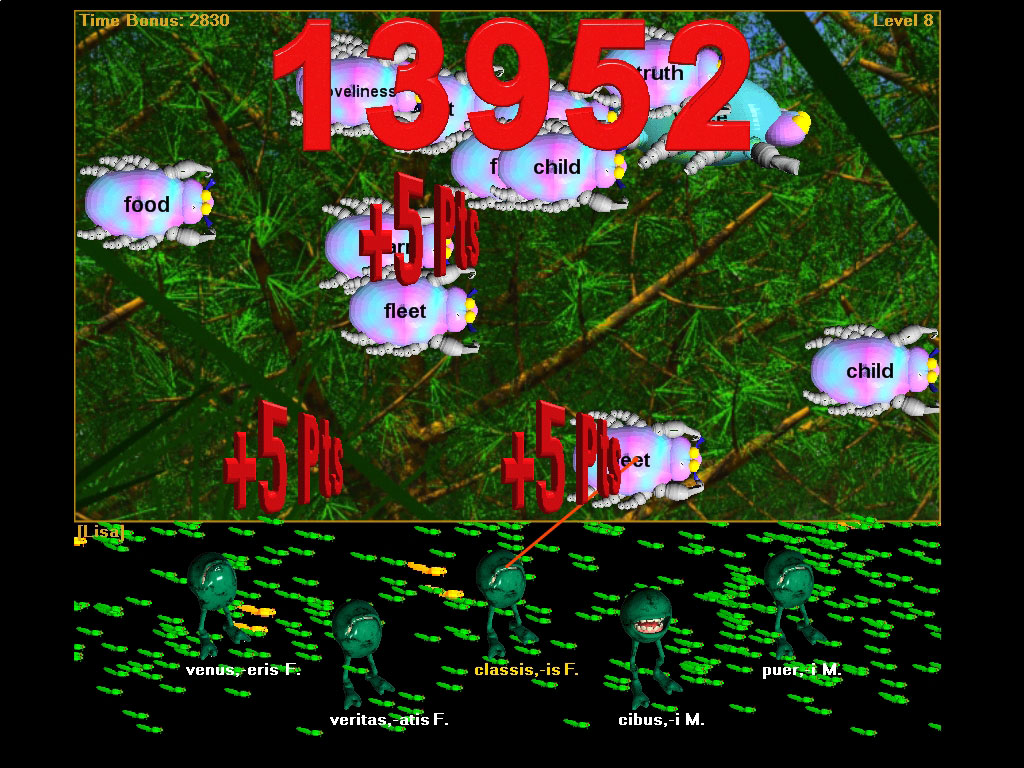
An image sized in between:
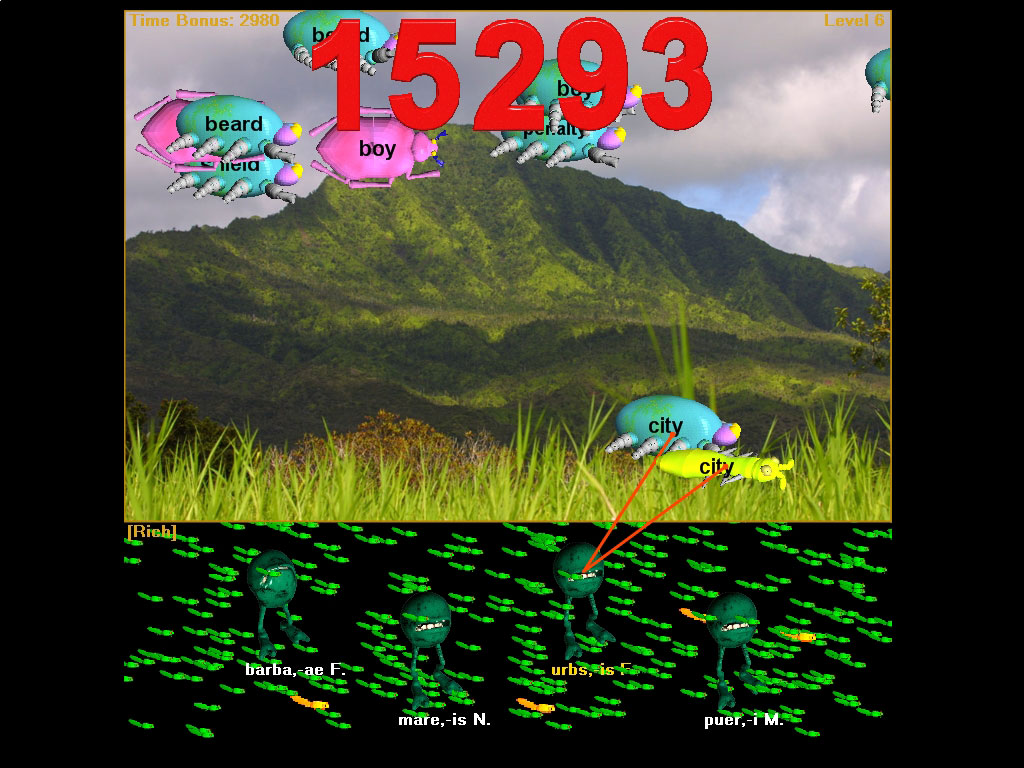
Finally, here is a screen capture from a very small window with the Hungry Frog Spanish software game running with the 'Use Full Screen' option turned off. You can see the grab bar, the minimize, maximize and close buttons in the top right and the 'sizable' borders of the window. If you want to change the size of the window, just grab an edge and move it to resize the window. To run across multiple monitors at the same time, just enlarge the window to cover more than one display.
